Before you start
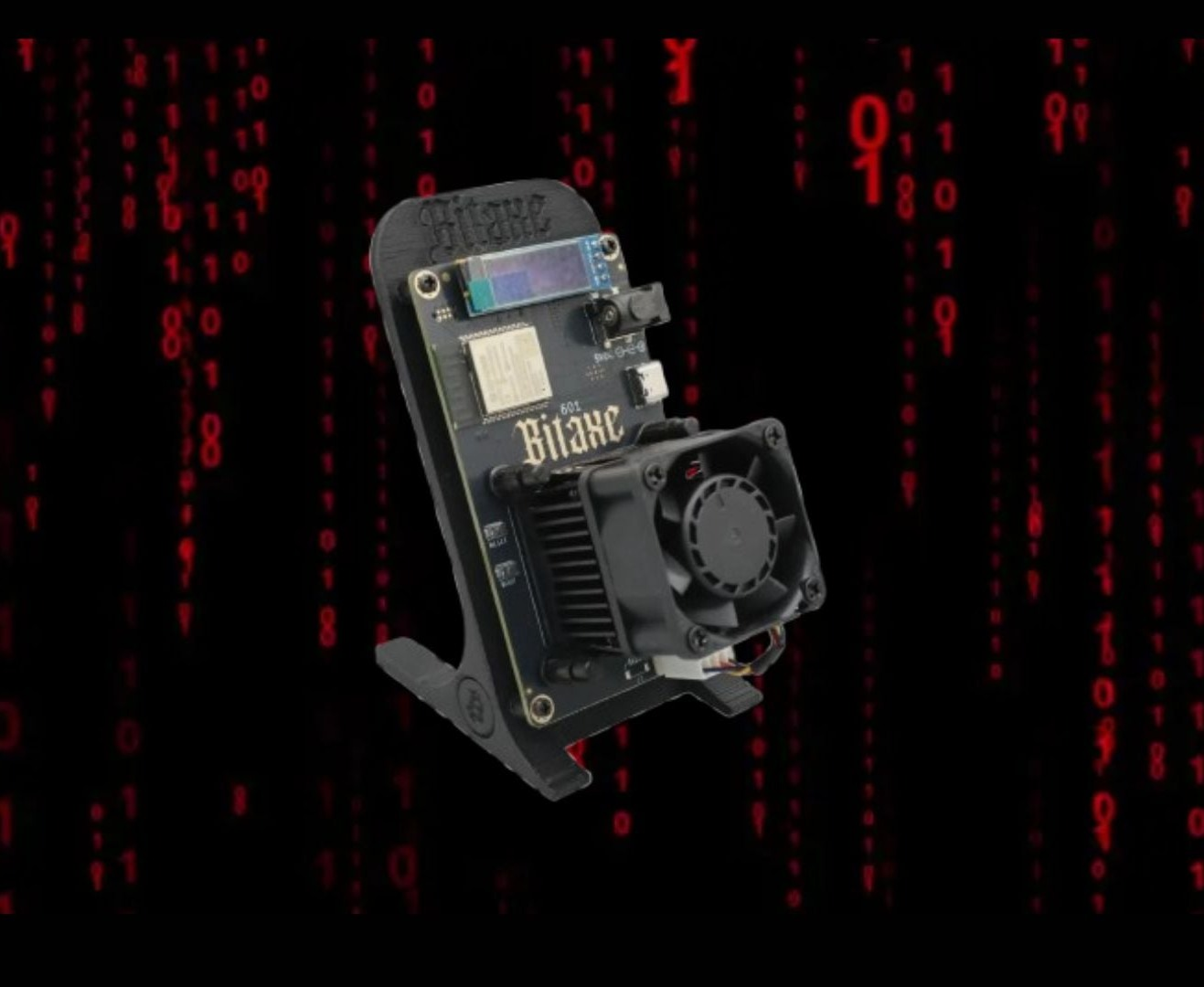
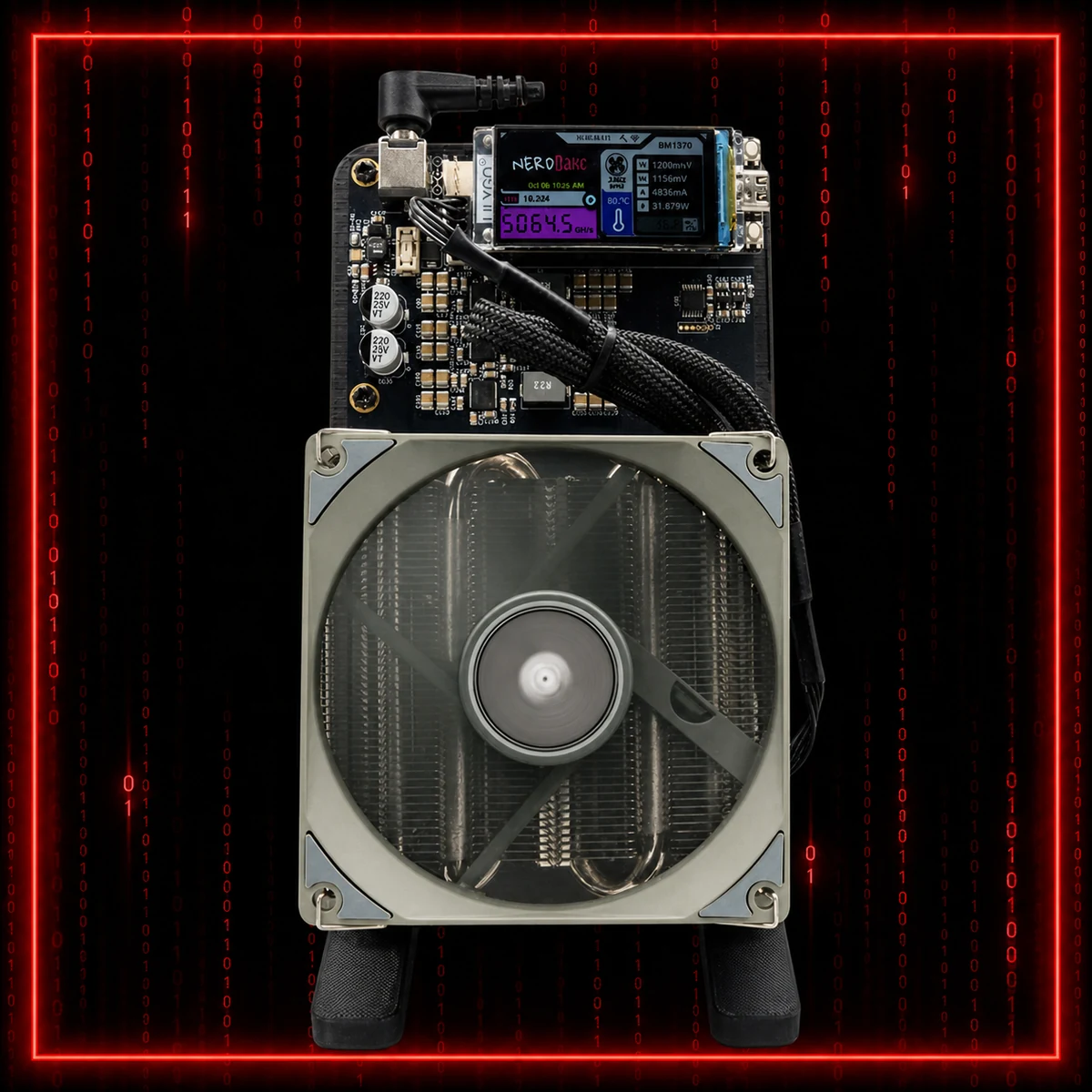
You need your Bitaxe, NerdAxe or NerdQaxe, the correct power supply, a stable 2.4 GHz Wi-Fi network, and the pool details from the site.
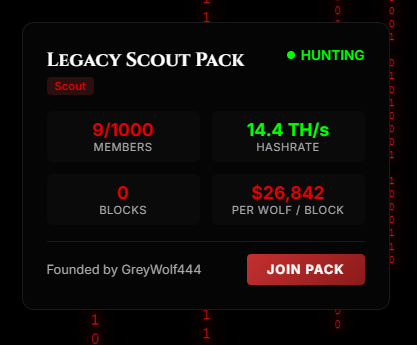
Open Browse Packs and choose a pack first. Its details card gives you the pool address, port, worker/user details and password, and lets you connect your wallet and join in one step. Most setups use password x.
Power on and join the miner Wi-Fi
Turn on the miner and wait for the screen. New devices usually broadcast a temporary Wi-Fi network such as Bitaxe_XXXX or Nerdaxe_XXXX.
- Open Wi-Fi settings on your phone, tablet or laptop.
- Join the miner Wi-Fi network.
- If a setup page does not open automatically, type 192.168.4.1 in your browser.
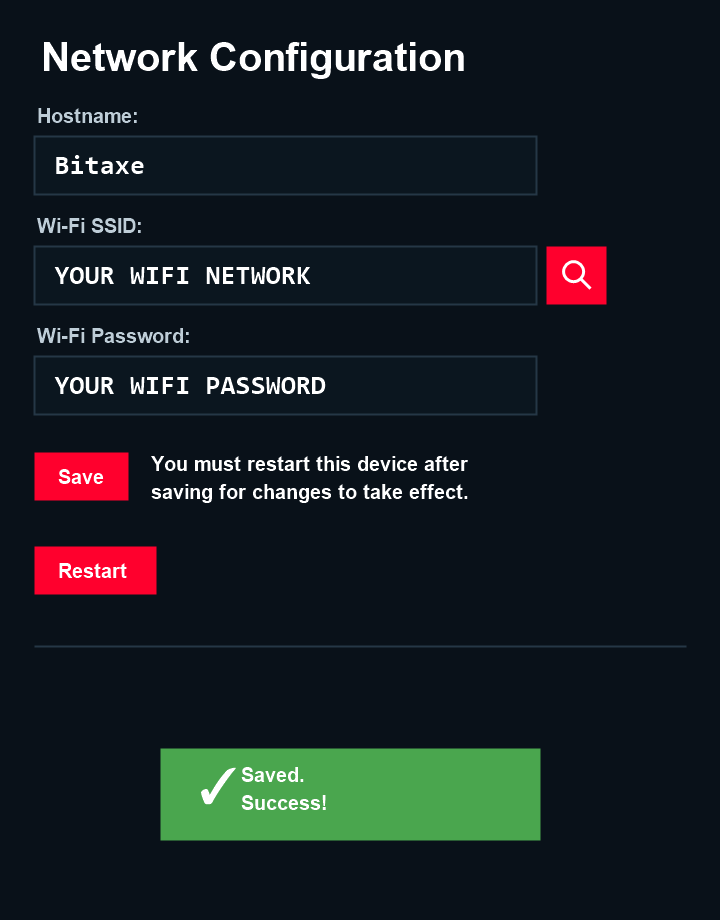
Miner Dashboard Setup
After saving Wi-Fi and restarting, your miner should join your home network. The device screen will show its local IP address. Type that IP address into your browser on a phone, tablet or computer connected to the same Wi-Fi network.
- Wait for the miner to reboot after Wi-Fi setup.
- Read the IP address shown on the miner screen, usually something like 192.168.1.xxx.
- Type that IP address into your browser address bar.
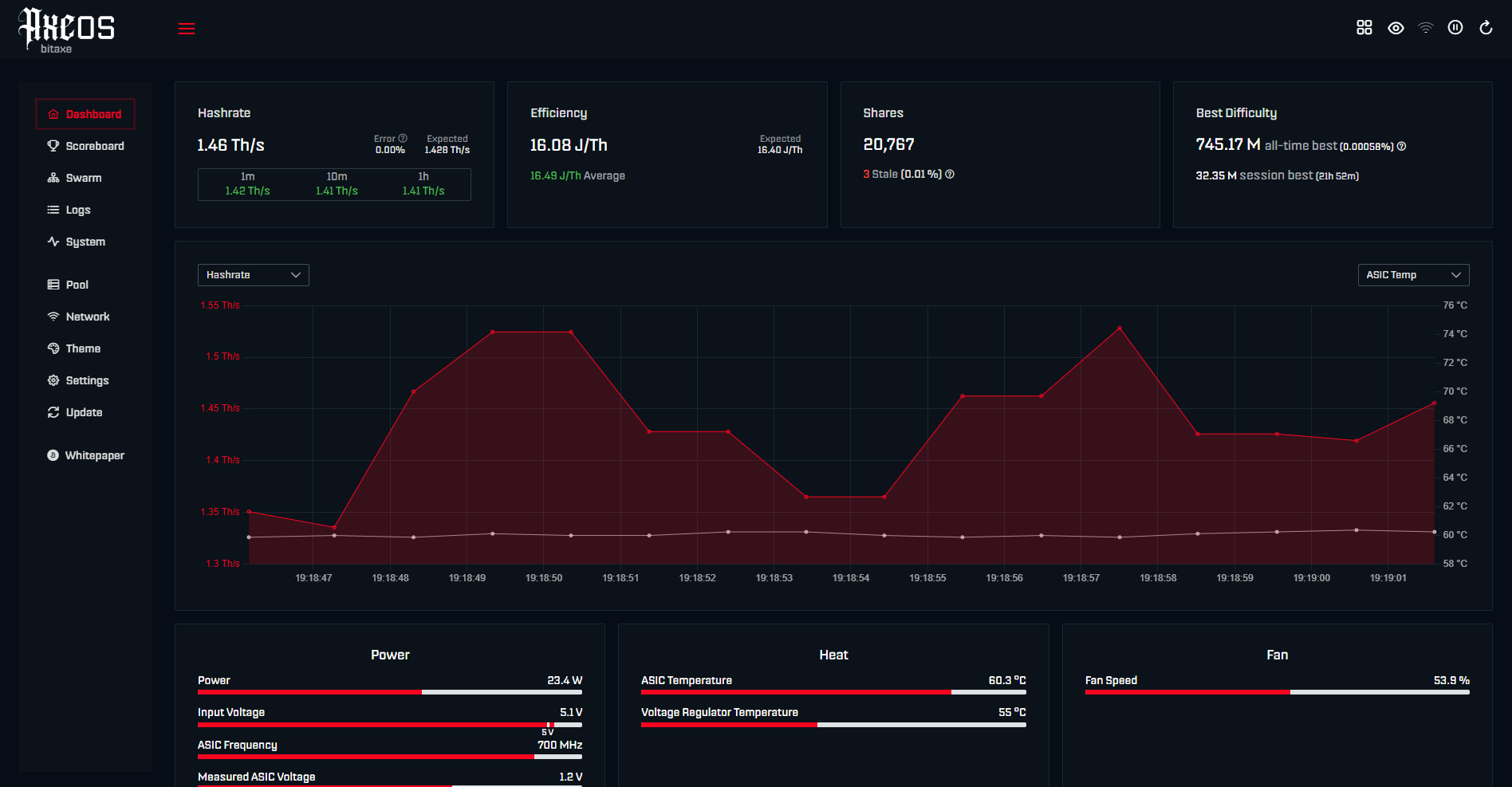
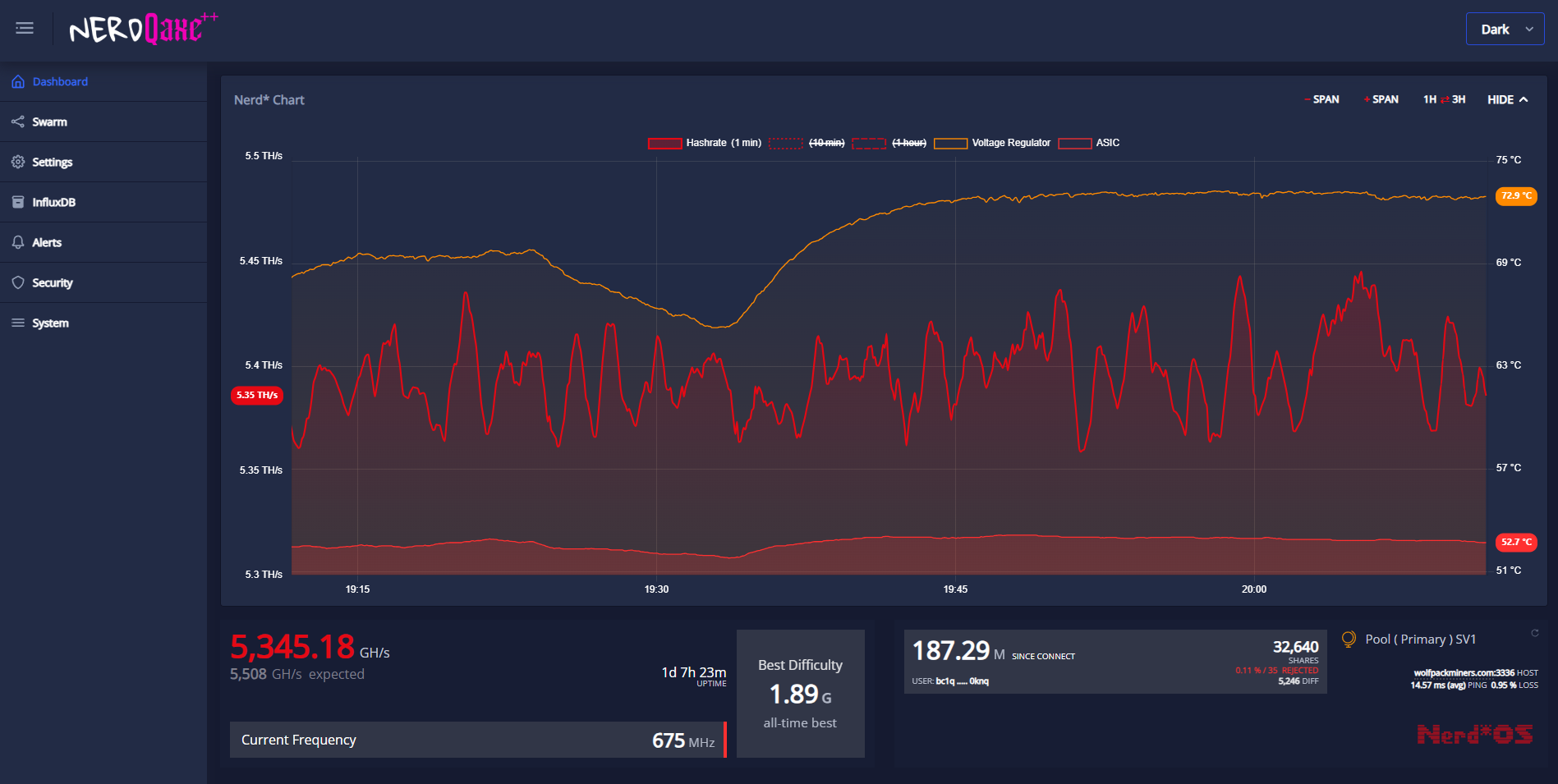
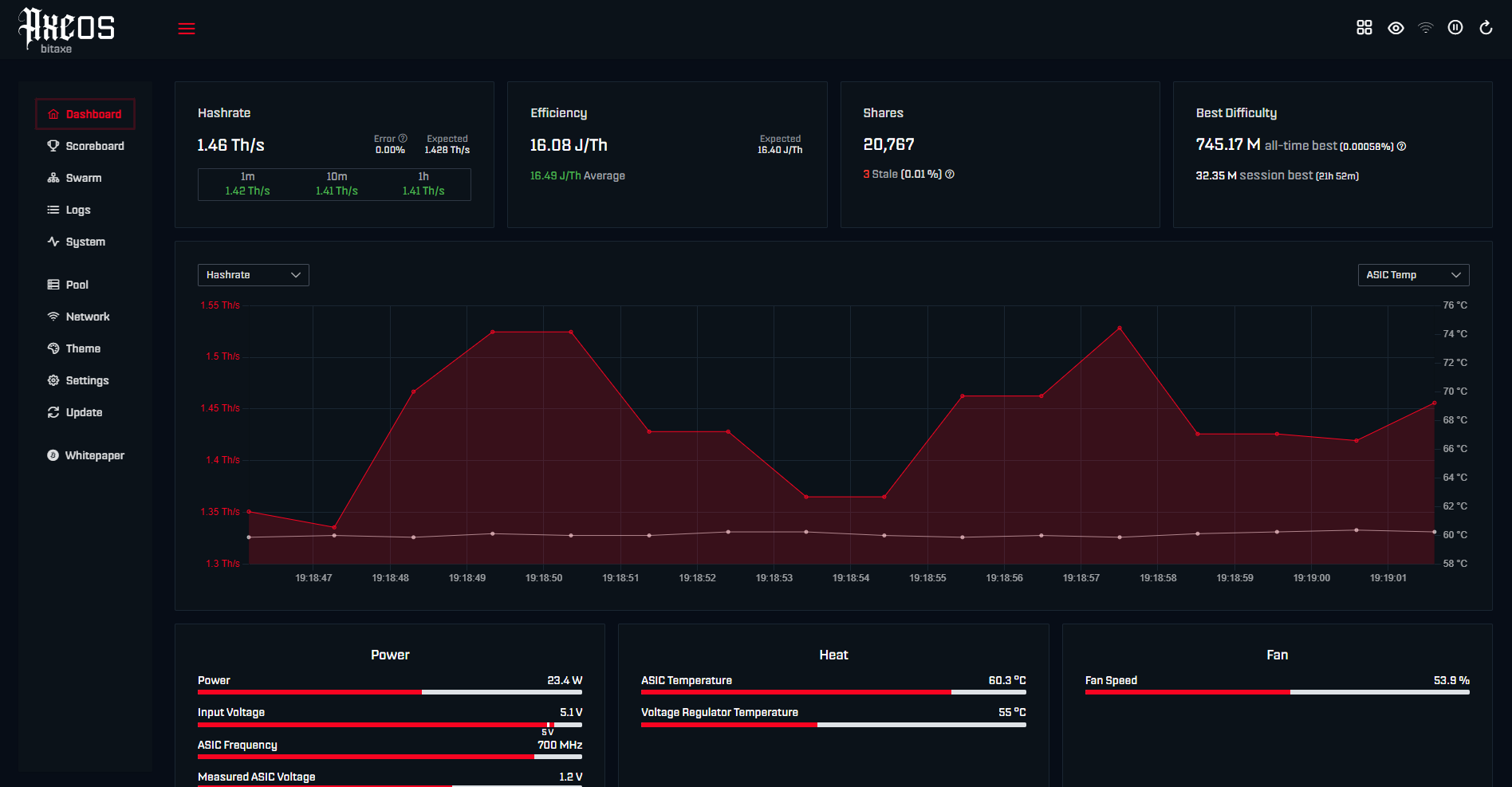
- AxeOS, NerdAxe OS or NerdQaxe OS should open so you can check hashrate, shares, temperature and pool status.
Join a pack and get its pool details
Go to wolfpackminers.com and use the pack card to complete the simplified joining process.
- Scroll down to Browse Packs, choose the pack you want and click Join Pack.
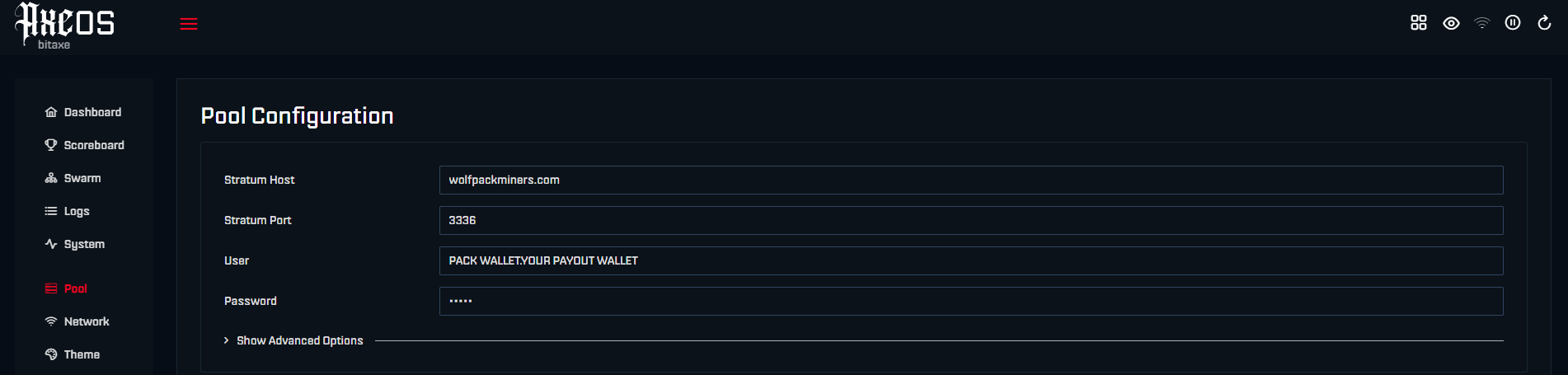
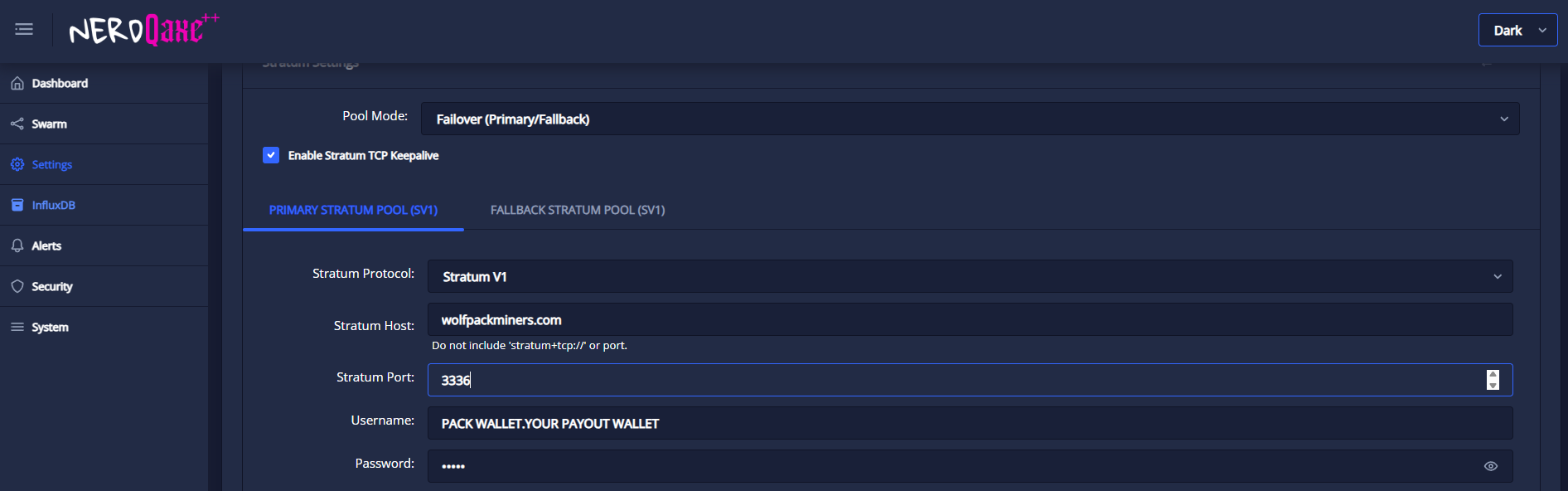
- On the pack details card, click Connect Wallet to Join. Enter your public Bitcoin wallet address and connect. You are placed in the selected pack automatically and returned to its details. Copy the pool address, exact port, personalised worker address and password into the pool settings in your AxeOS, NerdAxe OS or NerdQaxe OS dashboard, then save and restart.
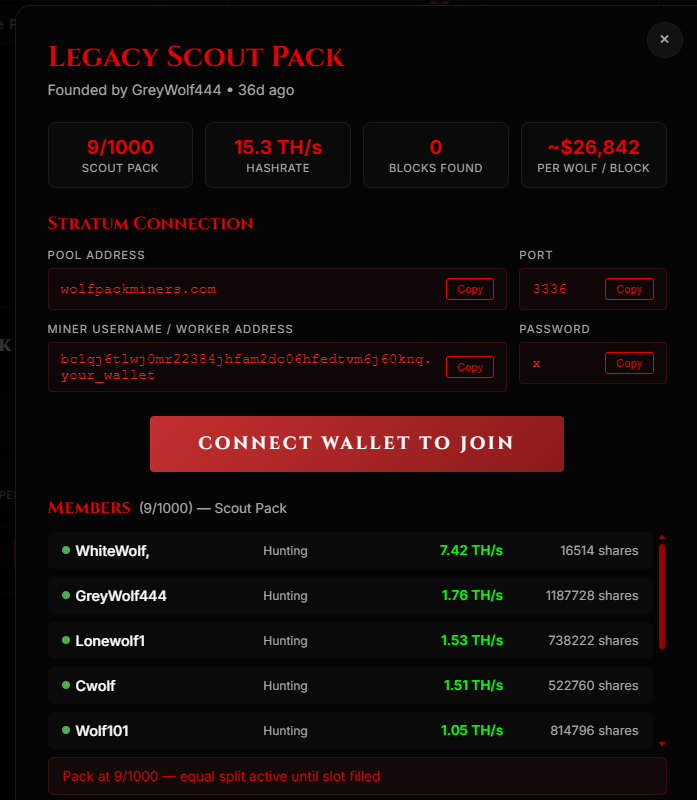
Important: select the correct port from the pack card and enter it in the miner dashboard. Do not guess the port.
Confirm the miner is submitting work
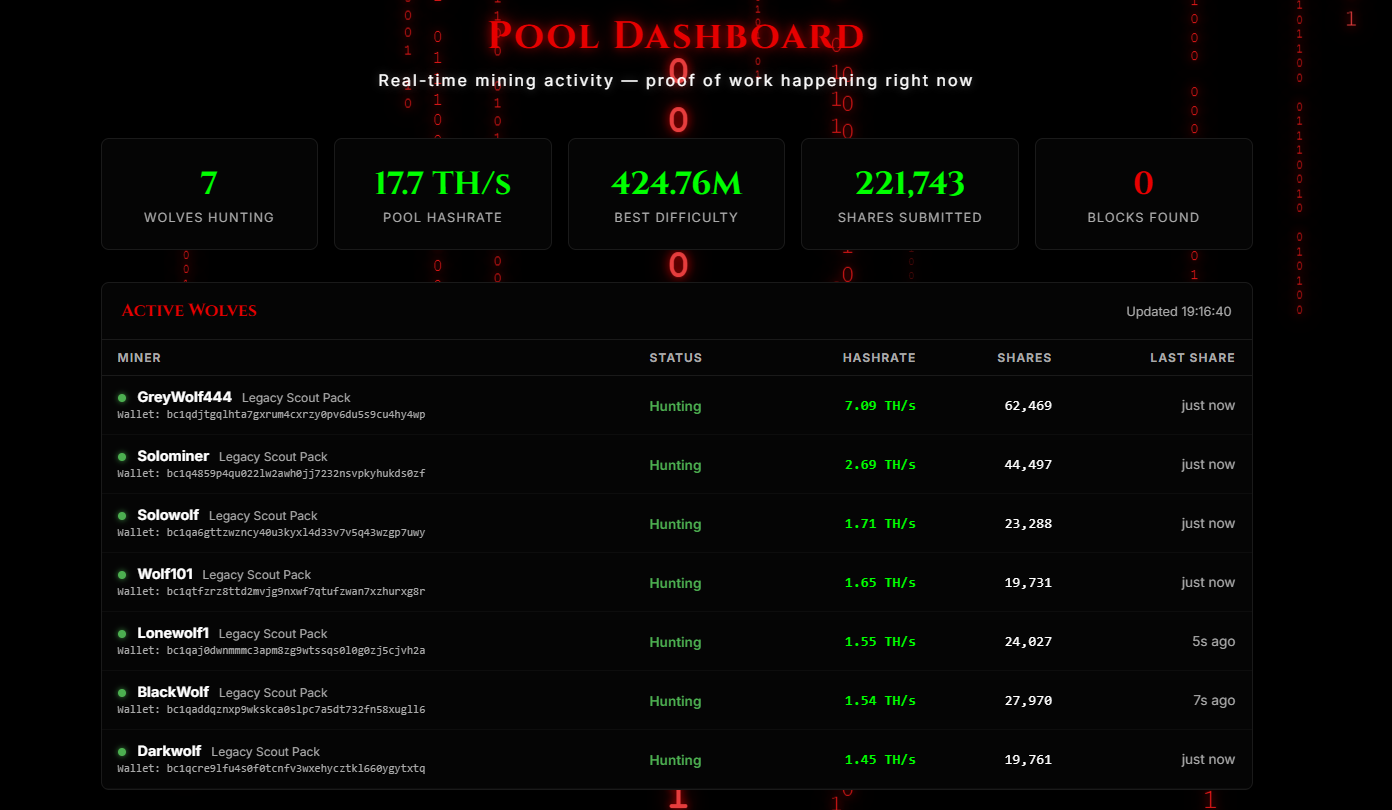
After restart, allow about one minute for the server to update, then refresh the Wolf Pack Miners dashboard. You should see your device hashing. You can also open Miner Stats at the top of the mine page and use Find Miner to confirm your worker is hashing.
- Your registered miner should show as active when real work is being received.
- Hashrate can move up and down while the site calculates a stable average.
- Small ESP32-class miners can appear quiet for longer because accepted work depends on difficulty and device power.
- Use the same credentials on extra devices under the same wallet to add hashrate without taking extra pack slots.
Fast troubleshooting
- No Wi-Fi connection: check 2.4 GHz, exact password and router blocks.
- Unauthorized worker: copy the worker/user field from the pack card again.
- No shares yet: give it time. Very low-power CYD-style miners do very little work, so they can take a while to submit an accepted share. New workers can also take a minute or two to appear on the server after the first valid work arrives. This is normal.
- Multiple devices: repeat the same pool settings on each device under the same registered wallet.
Start mining
When your miner is configured, its hashrate is added under your registered wallet. Extra devices can use the same credentials to add more hashrate without taking extra membership slots.